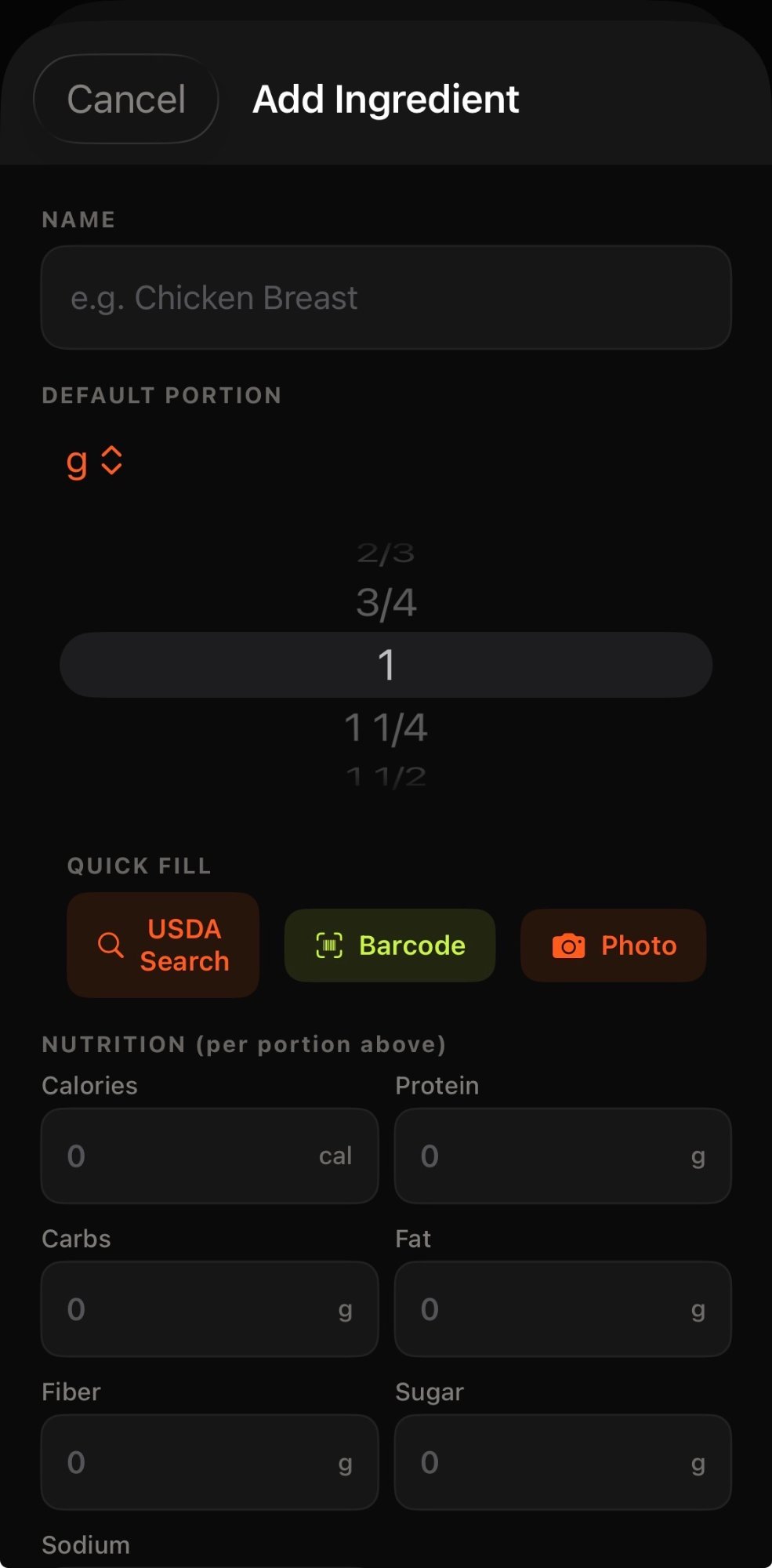
Step 01
TAP MY HUB TO GET STARTED
At the bottom of the app you'll find the My Hub button. This is your home base — where you access your profile, pantry, recipes, and everything Tommy needs to coach you.
Pro tip: My Hub is where the magic happens. Start here every time.
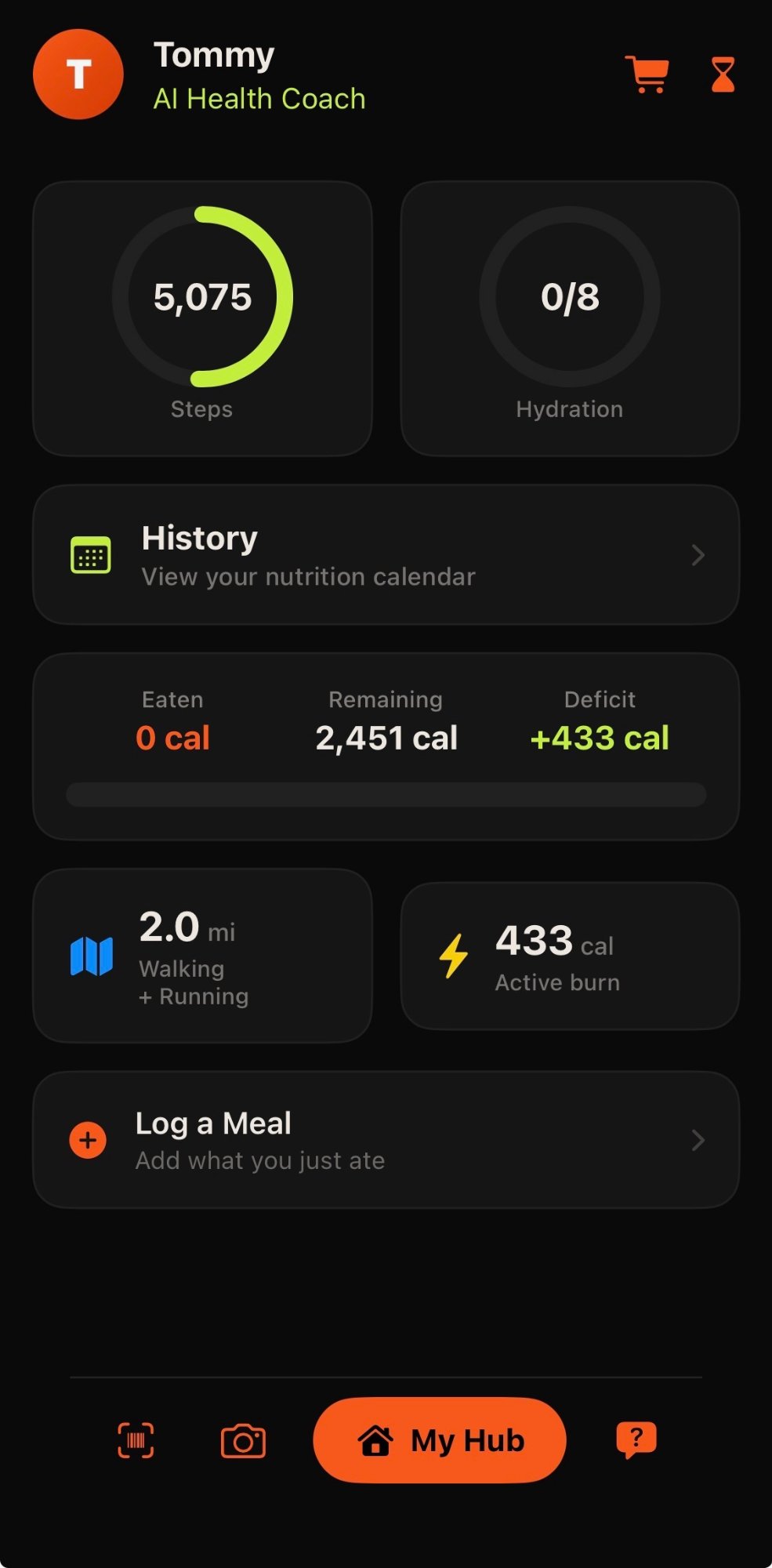
Step 02
FIND MY PANTRY INSIDE YOUR HUB
Once inside My Hub, select My Pantry. This is where you build your personal food library — the foods you eat regularly and already have at home.
Why this matters: The more ingredients you add upfront, the faster logging becomes every single day.
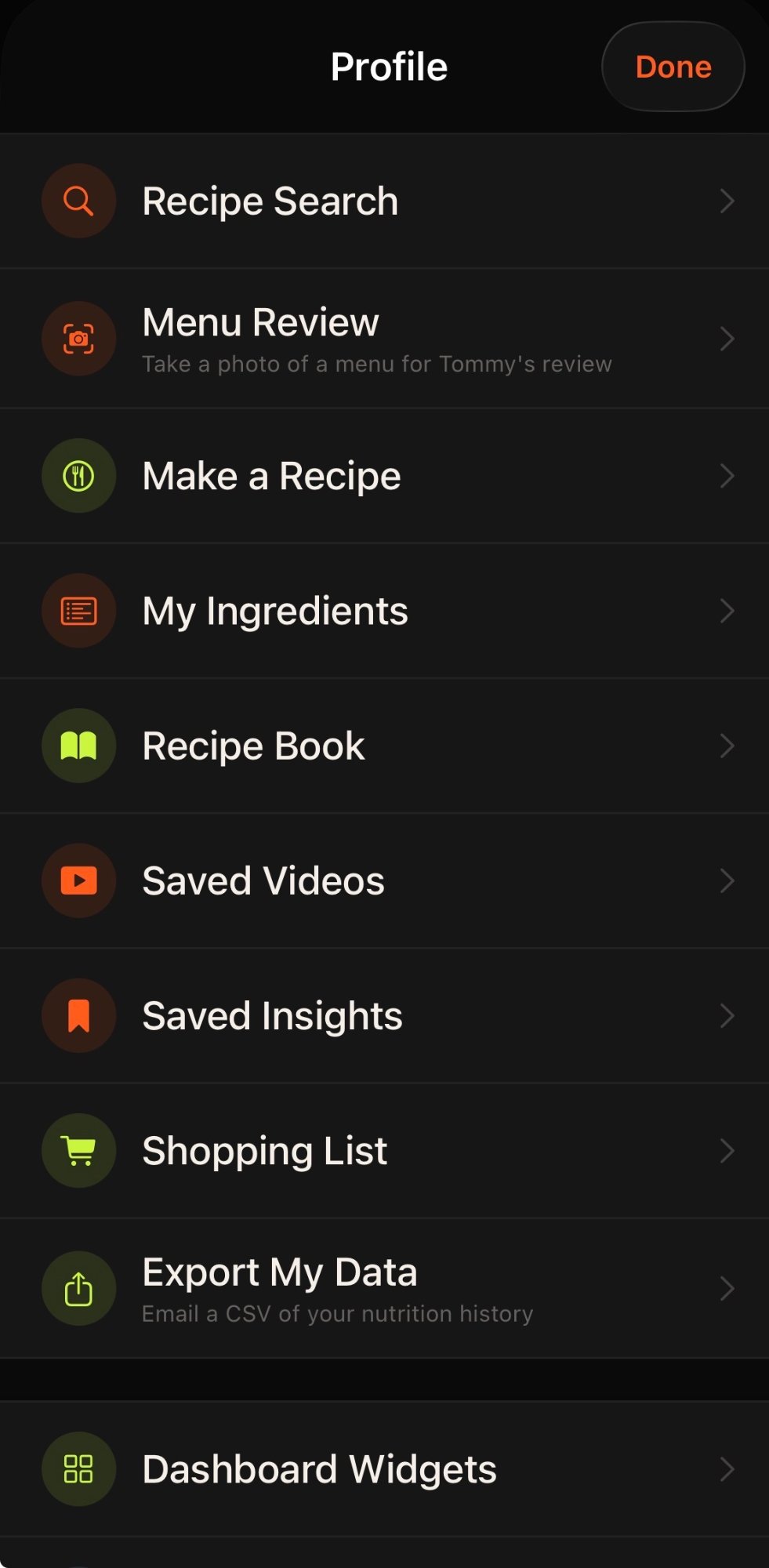
Step 03
ADD THE FOODS YOU ALREADY EAT
Start adding the items you reach for every day — your go-to yogurt, that Asian cashew salad kit, chicken thighs. These become your personal shortcuts for instant meal logging later.
Think pantry first: Walk through your fridge and add what's already there.
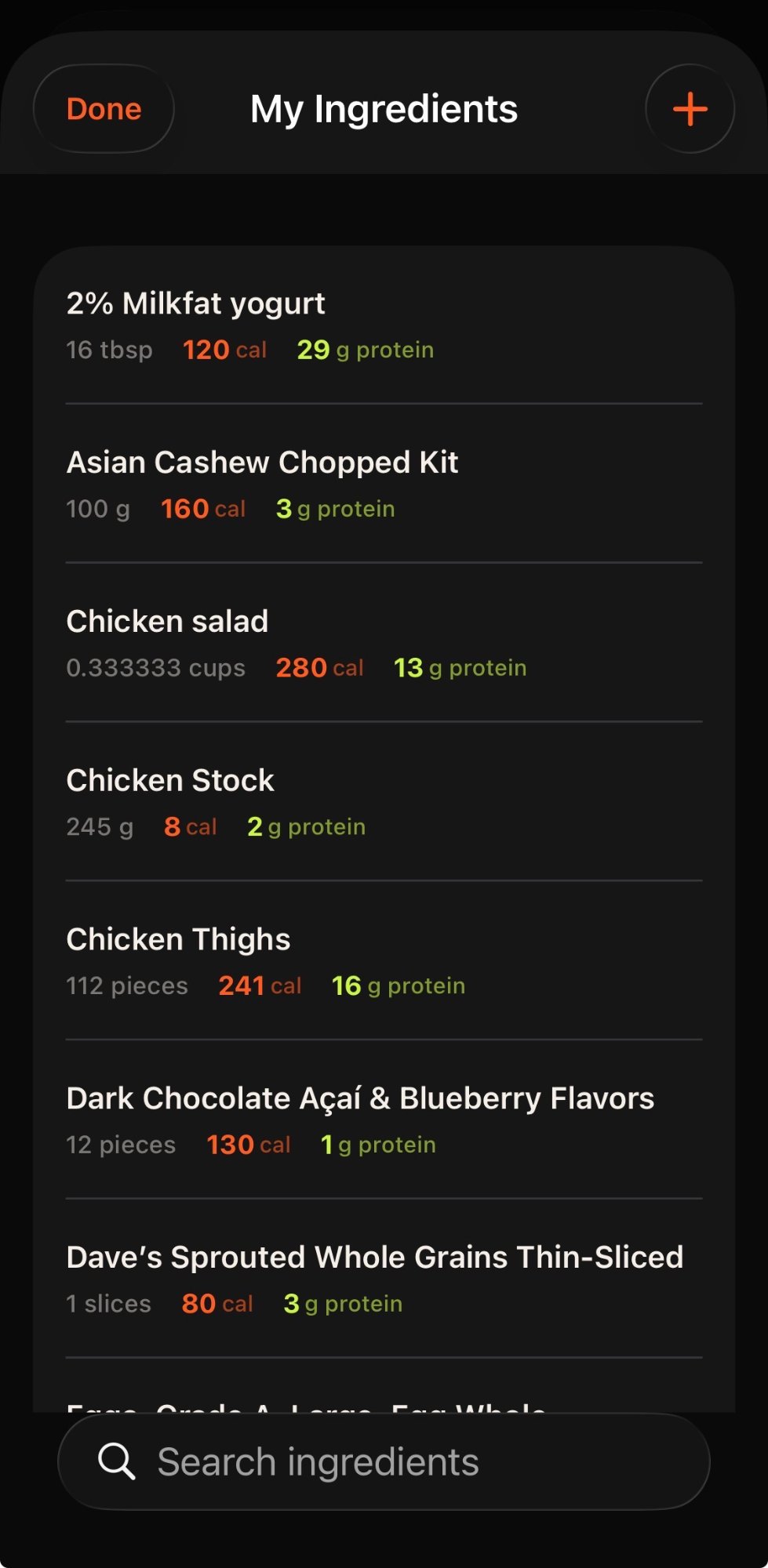
Step 04
SCAN BARCODES FOR INSTANT NUTRITION
Tap the + button to add a new item, then hit Barcode. Point your camera at any packaged food and the full nutrition info populates automatically — calories, protein, carbs, fat and more.
No typing required: Scan once, log forever. Your pantry grows with you.